When the event data of your Pixel is abnormal and you need our assistance in troubleshooting, in order to improve the efficiency of troubleshooting, it is recommended that you share your Pixel with us.
How to Share Facebook Pixel
The first way to add
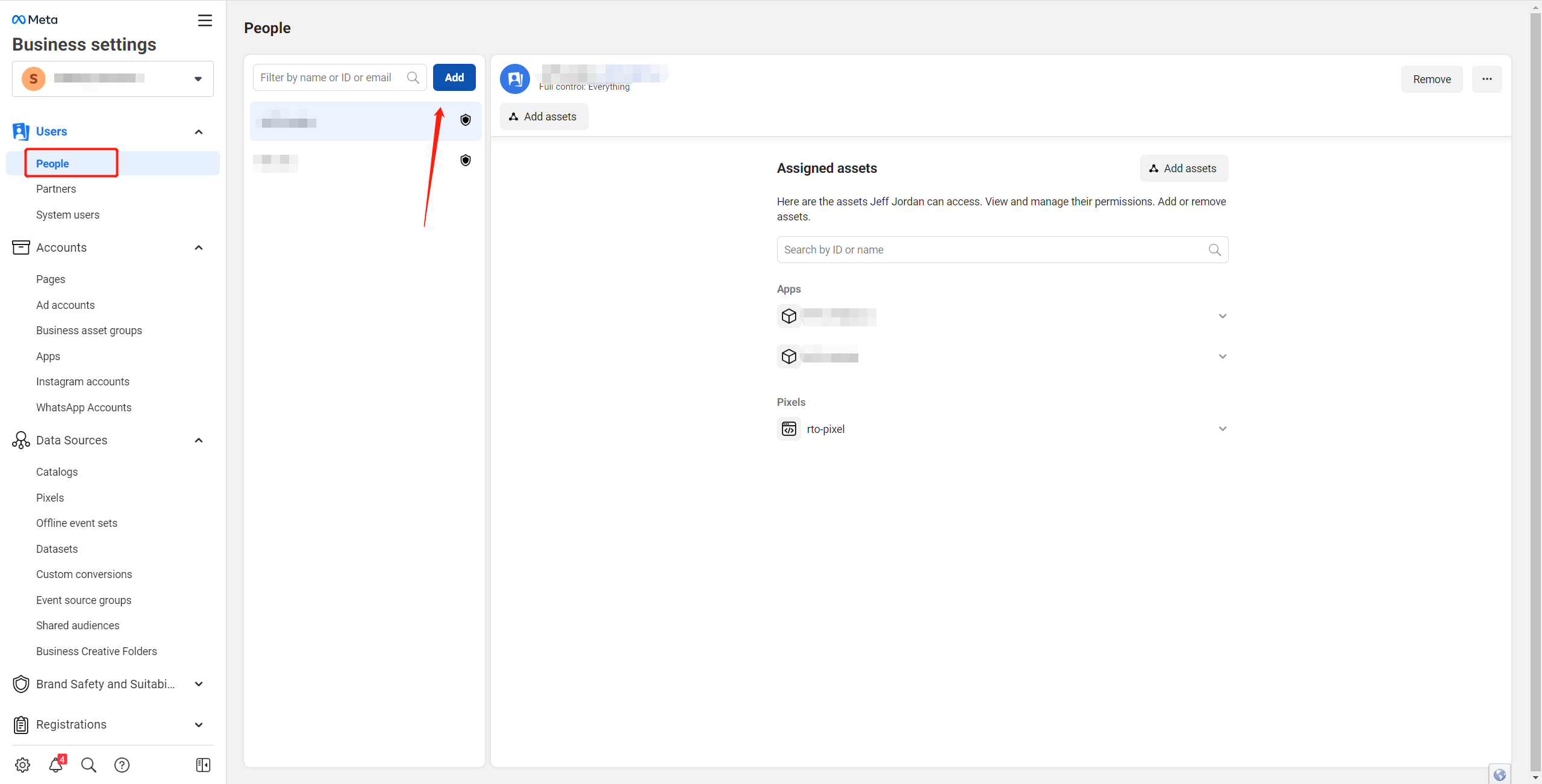
Click here, select the Business Manager where your a account is located and then enter the Business Settings interface
Enter the Users > People page, click the Add button shown in the figure below to add a new user
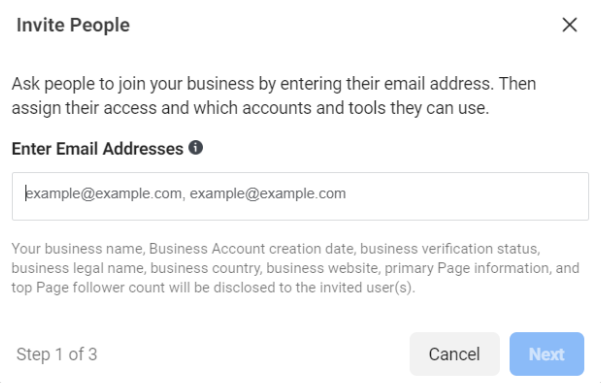
- In the Invite People pop-up window, enter the OmniTrack technical support acocunt: nic860107@gmail.com, and then click the Next button
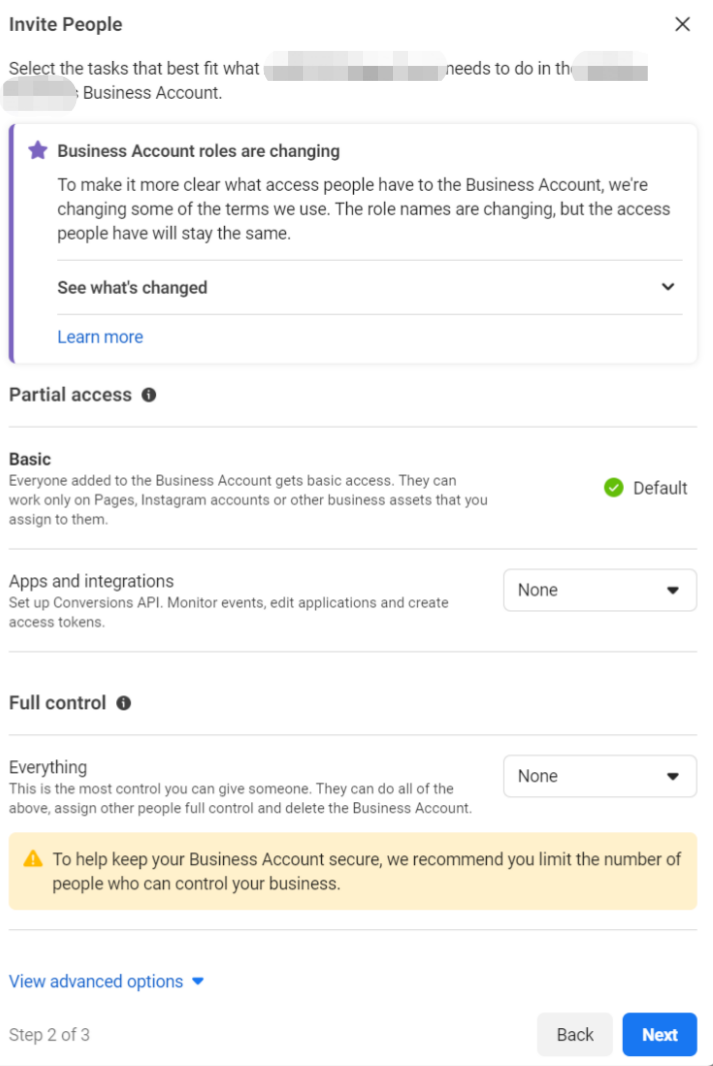
- No need to make any modifications in Step2, just click the Next button
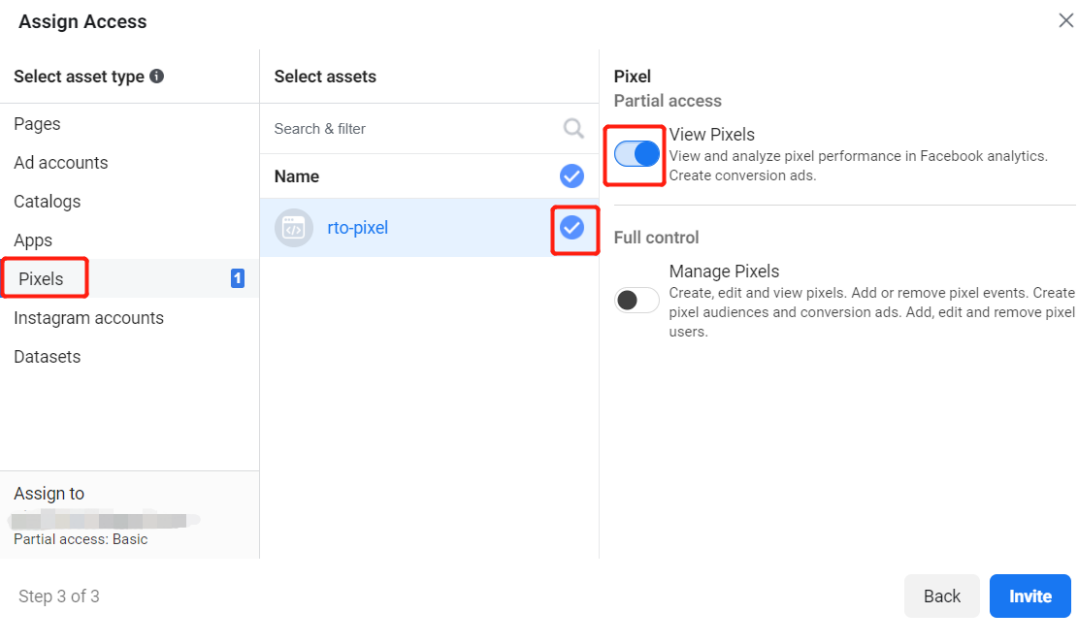
- Select the corresponding Pixel in the Pixels option, and assign the "View Pixels" permission, and then click the Invite button
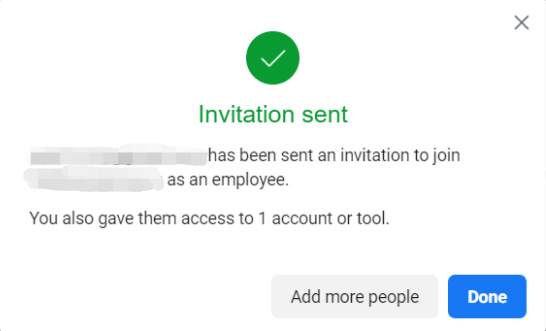
- When you see the following prompt, it means that the sharing operation of the advertising account has been completed. You only need to pass the prompt information in the picture below through the chat window or send an email to Support@rto.ai, and we will arrange technical staff to help you troubleshoot the problem.
The second way to add
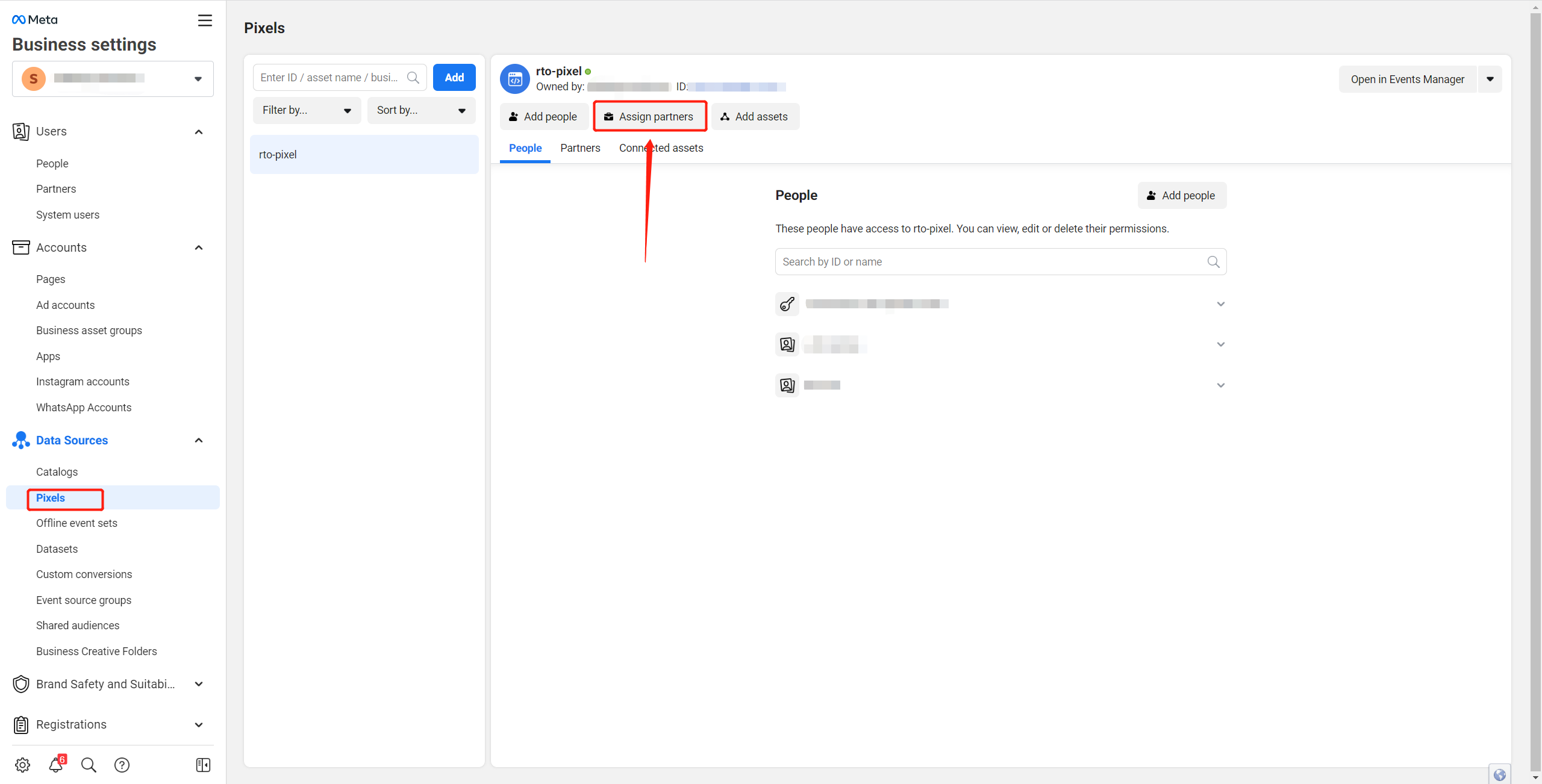
- Enter the Pixels page, select the Pixel to share, click the Assign partners button as shown in the figure below, and assign the Pixel to our Business Manager
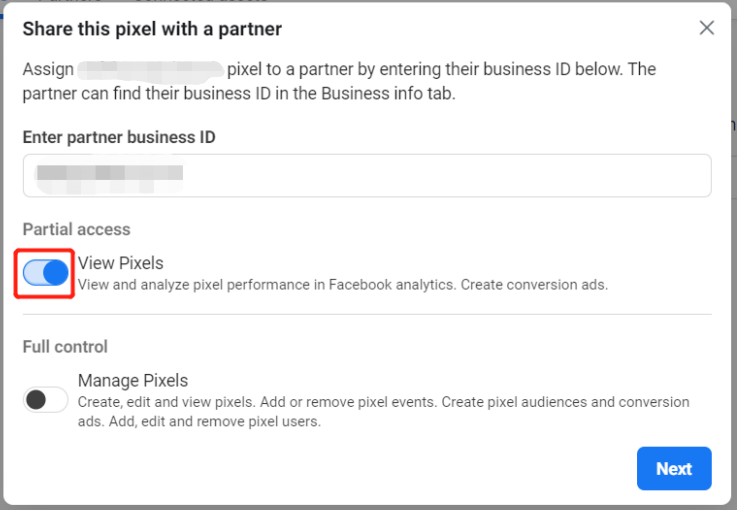
- In the following pop-up window, enter our Business Manager ID 1682189422044452 in the input box of Enter partner business ID, open the View Pixels permission in Partial access, and then click the Next button
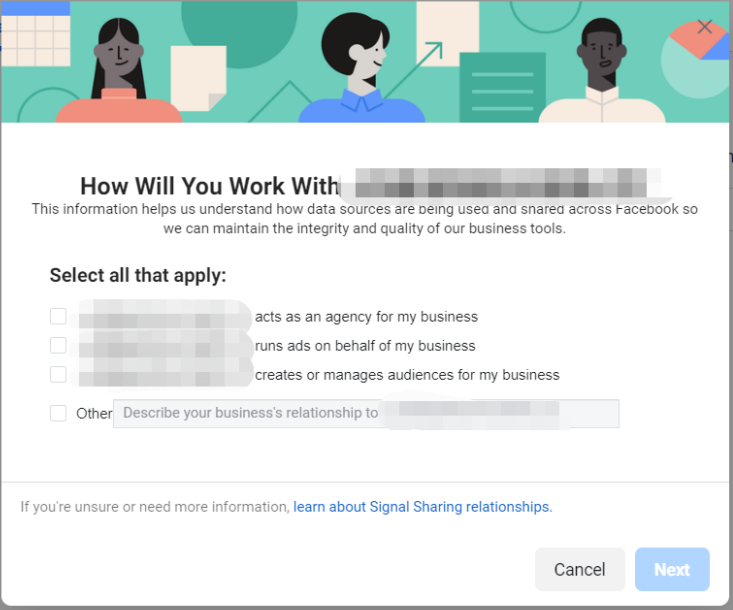
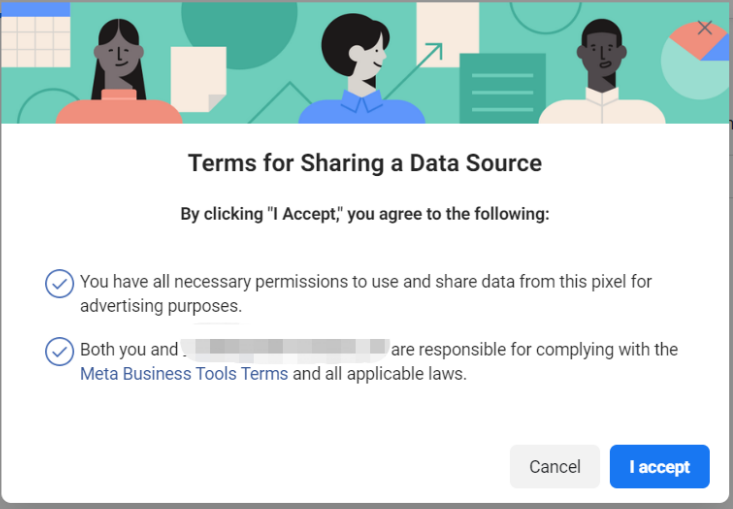
- The next two steps can be selected according to actual needs. After clicking the I accept button, you will see a prompt that the sharing is successful. Similarly, you need to use the OmniTrack APP chat tool or send an email to Support@rto.ai to inform us of the successful sharing prompt information, and we will arrange technical staff to help you troubleshoot the problem.